3.3. The Graphical User Interface (GUI) execution mode
3.3.1. Launching the GUI
The Phosphoros Graphical User Interface (GUI) provides an interactive and user-friendly execution mode. After starting Phosphoros (see Download and Installation section), the GUI can be launched by the command line:
> Phosphoros GUI
Once the GUI starts, a window opens (see Fig. 3.3). At the top
of this, a navigation menu is visible with the main steps of
Phosphoros: Configuration, Catalog Types, Parameter Space,
Compute Redshifts and Post Processing. The menu is visible at
all times, and it allows you to navigate through the different
Phosphoros panels.
Fig. 3.3 Starting window of the Phosphoros GUI
3.3.2. GUI: Configuration
Configuration allows users to see, and eventually to change, the
default directory configuration, and to check the available auxiliary
data present in the Phosphoros database. Three sub-panel can be
opened:
General Here the Phosphoros root path is shown, along with the default directories for input/output data. No changes are required if users keep the standard directory structure. Otherwise, the path to new directories can be selected through the
Browsetabs.Users can choose the number of sources to keep in memory simultaneously (the default value is 5000): high values will speed up the execution of the template fitting, at the expense of increasing the memory usage. Users can also fix a cap in the memory usage by clicking on the
Template Fitting: Cap the memory usagebutton and selecting the maximum value (see Fig. 3.4). This is a further way to limit the number of sources in memory. Moreover, it is possible to choose the number of unit of execution (or thread) within a process, by clicking on theOverride the Maximum Number of Threadsbutton. Otherwise, the maximum number of available threads is automatically selected.Finally, through
Log Leveldrop down menu users can select logs information to be printed in the terminal when the Phosphoros GUI is running.
Fig. 3.4 The
Configuration: Generalpanel of the GUI¶Auxiliary Data The Phosphoros GUI can be used to display auxiliary data files. This is not yet the place for selecting filters or SEDs (this is done in Parameter Space Definition), but it provides a view of all available auxiliary data (if any).
The
Reload Last Data Packtab allows users to (re-)download the last available version of the auxiliary data pack from the Phosphoros repository (containing, i.e., SEDs, filters, Reddening curves, etc.). This is useful if users altered the data locally and they want to replace them with the current data pack on the repository. Close to it, there is the tab to download the Planck dust reddening map. This is needed for the Galactic absorption correction if color excess is not provided in the source catalog.As an example, the screenshot of Fig. 3.5 shows a possible case for the
SEDs. Similarly auxiliary files inFilter Transmissions,Reddening CurvesandLuminosity Function Curvescan be displayed.In the
SEDspanel, emission lines can be added to a group of SED templates by clicking on theAdd Emission Line to SEDstab associated with it. A new directory (named as the original with the postfix_el) is generated with SEDs including emission lines, without modifying the original templates (see the Emission Lines section for more details).
Fig. 3.5 Example of the
Configurationpanel of the GUI showing SEDs present in the database¶The
Import Foldertab opens a finder window and allows users to import a directory with its entire content to the location of the selectedAuxiliary Datadirectory. On the other hand,Deletebuttons remove the corresponding folders. This is an irreversible action, and a confirmation message will be always displayed before deleting.Here, users can also select the reference solar SED used to normalize SED templates (see SED Template Normalization), and create new SEDs by interpolating the existing ones (see SED interpolation).
Cosmology The
Cosmologytab displays the value of the cosmological parameters relevant for Phosphoros and allows users to change them. The default values are taken from Planck 2015 results [PlanckCollaboration16] (including lensing and external data): \(H_0=67.74\) [km/s/Mpc]; \(\Omega_M=0.3089\); \(\Omega_{\Lambda}=0.6911\).
3.3.3. GUI: Catalog Setup: Mapping filters to column names
In order to compute modeled photometry, Phosphoros needs the transmission curve of filters used for the observed photometry. The name of transmission curve files has to be connected with the corresponding photometric bands of input catalogs.
The GUI provides an easy way for mapping trasmission curves to
catalog column names. The mapping operation is mandatory and is
achieved in the Catalog Setup panel (see Fig. 3.6).
First of all, on the top of the window, users have to select the
desired catalog type or to create a new one by clicking on the new
or duplicate buttons. Each catalog type corresponds to a folder
in the Catalogs directory, and duplicating or creating a new type
will create a new folder.
The input catalog is selected by Select File and Import Columns
(Phosphoros automatically selects a reference input file belonging to
the catalog type). Moreover, the column name providing source ID must
be entered through the Source ID Column drop down menu that
shows all the column names in the input catalog.

Fig. 3.6 Catalog Setup panel and the filter mapping operation in the GUI
The mapping operation begins by pressing Select Filters: a window
opens where the filter trsmission curves in the database can be
selected. When the filter selection is completed, pressing Save
closes the window and, as shown in the figure, fills automatically the
Filter Transmission Curve column. Each of the Flux Column Name
and Error Column Name cells now features a drop down menu (after
clicking on the cell) which can be used to specify the appropriate
Flux and FluxError column names.
If a catalog has some sources with missing photometry (sources that
were not observed in all catalog bands), users have to provide a flag
value in the Missing photometry flagged as control. By doing so,
the program is instructed to skip photometry having the flag value in
the flux column. The corresponding filters are then ignored in the
\(\chi^2\) calculation.
Note
Missing photometry flags must be numbers. Symbolic values as NaN, NULL or INF are not accepted by Phosphoros.
Catalogs may contain sources that are not detected in one or more
bands (i.e., the provided photometry is an upper limit of the flux and
not the nominal flux). In this case, users have to ensure that the
catalog follows the upper limit convention, i.e. photometry are
considered upper limits when their errors have negative values. Upper
limits are taken into account in the \(\chi^2\) calculation, as
described in the Template fitting method
section. In addition, users can set the Upper Limit recompute error
flag to a specific negative value (e.g., -99): when Phosphoros
finds a flux error that matches the upper limit flag, the error will
be computed as \(flux/n\), where \(n\) is the number in the
Upper limit over error ratio column of the Filter Mapping
table. Users can change this number by clicking on the tabs (the
default value is 3).
Users have also the ability to modify or re-calibrate error values in catalogs according to the following formula:
where \(f_k\) and \(\sigma_k\) are the original source fluxes
and errors for the filter \(k\), while \(\alpha_k\),
\(\beta_k\) and \(\gamma_k\) are coefficients chosen by
users. Clicking on the Error re-calibration control, columns
Alpha, Beta and Gamma will appear in the Filter
Mapping table (see Fig. 3.7). The values in those columns
will be used in the above formula. By default they are
\(\alpha_k=1\), \(\beta_k=0\) and \(\gamma_k=0\) (i.e., no
change in errors). The values can be changed clicking on the
corresponding tabs. The value in a tab can be propagated to all
filters by pressing Propagate Error Param .
Photometry can be also provided in AB magnitudes. To make
Phosphoros aware of it, it is enough to set True in the From
MAG column of the Filter Mapping table (the default is
False). AB magnitudes will be then transformed to fluxes by
Phosphoros.
Finally, users can map filters to the catalog columns that contain the filter shift (if present). This is required when flux corrections due to filter variations are taken into account in the redshift computation (see Advanced Features: Filter Variation).

Fig. 3.7 Catalog Setup panel and the error re-calibration operation in the GUI
Few optional fields are present in the top-right of the Catalog
Setup panel: the column name of
source coordinates (the right ascension
RA (Deg)and declinationDEC (Deg));the Milky Way extinction along source line of sight (
MilkyWay E(B-V));the reference redshift (
Reference Z).
The two first points are only required if the Milky Way absorption
correction is applied (see Galactic Absorption section). In particular, sources
coordinates are needed if the Planck Galactic dust reddening map is
used for the correction. Otherwise, if the Milky Way extintion is
provided in the input catalog, users have to fill just the MilkyWay
E(B-V) tab.
When present in the input catalog, the reference redshift (e.g.,
spectroscopic redshift) is useful for the Post Processing
analysis.
The mapping process is terminated by clicking on the Save
middle-frame button. Please note that you can always add or remove
filters after a first mapping has been completed, by going back to the
Select Filters option.
After saving, the ASCII files named filter_mapping.txt and
error_adjustment_param.txt are created in the following
directory:
> $PHOSPHOROS_ROOT/IntermediateProducts/<Catalog Type>/
(in the previous examples, <Catalog Type> was Quickstart or
Cosmos). They contain all the information present in the Filter
Mapping table: in filter_mapping.txt you can find the qualified
name of transmission curve files, the flux and flux error column names
in the input catalog, etc.; while in error_adjustment_param.txt
the values of the coefficients used in Eq. (3.1) to
re-calibrate flux errors (see Filter Mapping in the File
Format Reference chapter).
You can always edit these files to make corrections. Alternatively,
you can create them with your favorite editor (rather than using the
GUI). When launched, the GUI will automatically load any
filter_mapping.txt (and error_adjustment_param.txt) file
located in the appropriate directory, providing it respects the proper
formatting.
Note
When you modify any of the GUI files using another editor, you always have to restart the GUI so that changes are taken into account.
Note
The mapping operation is carried out only once for all input catalogs belonging to the same catalog type.
3.3.4. GUI: Defining the model parameter space
An important step in Phosphoros is the specification of the model parameter space. Phosphoros parameters are four: redshift, restframe SED template, intrinsic color excess \(E_{(B-V)}\) and intrinsic reddening law. For each of them, a grid of values has to be provided by users. Phosphoros then computes, for each cell of the parameter space, a vector of modeled photometry, one value for each filter. This is called the grid of models. This calculation does not depend on observations and it can be achieved beforehand.
Clicking on Parameter Space, users can check the sets of parameter
spaces that are already present in the Phosphoros database
(Parameter Space drop down menu). They can be modified,
duplicated or deleted; or a new one can be created (see Fig. 3.8).
In the following, we describe how to define a new parameter space and
its specifications. This is done for a parameter space composed of
three groups of SED templates: Elliptical, Spiral and Starburst. First
of all, users have to define the values of the E(B-V) and
Redshift parameters in the grid. Clicking on the Configure
button, users can enter the values as a comma-separated list or as a
range of values (minimum, maximum value and step) through the Add
Range option (see Fig. 3.8). After saving them, select
New at the Sub-Spaces of the Parameter Space level, and a new
pop-up window opens, similar to that displayed in the left panel of
Fig. 3.9.
Through this window, you have to provide the name of a sub-space
(Elliptical, for example) and specify the SED, Reddening
Curve, E(B-V) and Redshift parameters. The SED and
Reddening Curve panels simply allow to select a sub-set of the
data available on the system. For the E(B-V) and Redshift
parameters, users can only modify the minimum and the maximum value of
the ranges previously defined in Configure. Saving them, the
parameter space of the (Elliptical) sub-space will be shown in the
GUI panel (see Fig. 3.9).
Note
With the GUI, all sub-spaces have by default the same sampling for
the E(B-V) and Redshift parameters. Users are only allowed
to select out some values at the beginning or at the end of the
parameter ranges. On the contrary, with the CLI, users can define
different samplings for E(B-V) and Redshift in different
sub-spaces (see
CLI: Generating the grid of models).
The operation is terminated clicking on the Save button (at the
top-right of the window). Make sure to complete the full
specification of the three groups before continuing to the next
section.

Fig. 3.8 Setting E(B-V) and Redshift range in the GUI

Fig. 3.9 Setting a parameter space in the GUI
3.3.5. GUI: Generating the model grid
Previous sections described how to set up Phosphoros database. In the
Compute Redshifts panel, instead, Phosphoros executables are run
in order to compute the grid of models and to estimate photometric
redshifts.
At the top of the Compute Redshifts panel, users can select
previously defined catalog types and parameter spaces to use in
the following analysis.

Fig. 3.10 How to generate a grid of models in the GUI
The panel is organized into six successive sub-panels (see
Fig. 3.10). The first two concern the model grid generation
(1. Luminosity Filter and Extrinsic Absorption and 2. Grids
Generation). Sub-panels 3–5 (3. Prior, 4. Photometric
Zero-Point Corrections and 5. Algorithm) are optional
functionalities and are described in the Advanced Features section. Finally, the sixth sub-panel
(6. Input/Output) sets up the input and output files.
Note
Sub-panels title can be black, orange or red. The orange/red color
in one of the six steps means that some actions are required
before Phosphoros could run to compute redshifts. For example, if
2. Grids Generation is orange, no model grids have been
produced for the selected specification yet. After the grid
calculation is completed, the color turns to black indicating that
the values have been computed and stored in a file that can be
read in the subsequent steps of the analysis. The red color of
2. Grids Generation means that model grid and Galactic
correction grid are incompatible with each other.
If you change anything in the specifications, the colour turns to orange again reminding that a new grid must be generated before continuing the analysis.
In order to produce a grid of models users have to go through with two steps:
Luminosity Filter and Extrinsic Absorption
In the first sub-panel, users can select:
1) the reference filter used for the SED normalization (a default one is proposed by Phosphoros);
2) the prescriptions for the intergalactic medium (IGM) absorption correction –
Madau,Meiksin,Inoue– orOFF, if no correction is applied (see the Intergalactic medium absorption explanation).3) if the Milky Way absorption correction is applied or not. There are two options for the correction (see also the Galactic absorption section). The first one (
Look-up Galactic E(B-V) in Planck Dust Map) fetches the Galactic color excess \(E(B-V)\) from the Planck dust reddening map. The column name of source coordinates must have been provided in theCatalog Setuppanel, and the Planck map be previously dowloaded in theConfiguration --> Aux.Datapanel. Otherwise, Galactic color excess values can be read from the input catalog (Use Galactic E(B-V) Column). In this case, users must have provided the corresponding column name in theCatalog Setuppanel. If the required information is not given, the previous options are not available to users.Warning
In the case the color excess is read from the input catalog, Phosphoros assumes that those values have been derived using mean sequence B5 stars. If not, they should be scaled by the band-pass correction (see the Galactic Absorption section). This operation can be only done in the CLI mode.
Note
The IGM absorption correction is applied to SED templates before computing modeled photometry. On the contrary, for the Milky Way absorption, correction coefficients are applied directly to modeled photometry, i.e. after computing the grid of models (see the Galactic absorption section).
Grids Generation
In order to generate the grid of models, users have to specify a filename for storing the output. By default, a filename is automatically generated concatenating
Gridwith the parameter space name and the selected IGM prescription (e.g.,Grid_<parameter space name>_MADAU). The output file is stored in the following directory:> $PHOSPHOROS_ROOT/IntermediateProducts/<Catalog Type>/ModelGrids/
Clicking on the
(Re)-Generate the Gridbutton generates the grid of models, while onSave Config. Filea configuration file with all the command line options needed to generate the grid of models with the CLI is saved.If the Milky Way absorption correction has been selected in the previous step, the grid of correction coefficients has to be generated using the corresponding
(Re)-Generate the Gridbutton. The coefficients grid file is stored in the directory:> $PHOSPHOROS_ROOT/IntermediateProducts/<Catalog Type>/GalacticCorrectionCoefficientGrids/
The default name follows the model grid name plus
_MW_Param. As before, click onSave Config. Fileto store the configuration file.Finally, if the
Filter Shiftbutton has been activated in theCatalog Setuppanel (see Advanced Features: Filter variation), the grid of filter variation correction coefficients has to be generated with theFilter Variation Correction Grid Filebutton. The file is stored in:> $PHOSPHOROS_ROOT/IntermediateProducts/<Catalog Type>/FilterVariationCoefficientGrids/
with the default name that is the model grid name plus
_FS_Param.
3.3.6. GUI: Computing Redshifts
The sub-panel six, 6. Input/Output, is the last step before
estimating the best-fit model and the photometric redshift for input
sources. Here, users have to specify the input catalog to analyze and
the outputs to be generated by Phosphoros (Fig. 3.11).
Note
So far, users were not required to specify any input catalog. Previous steps in fact need to know only the catalog type which the input catalog belongs to.
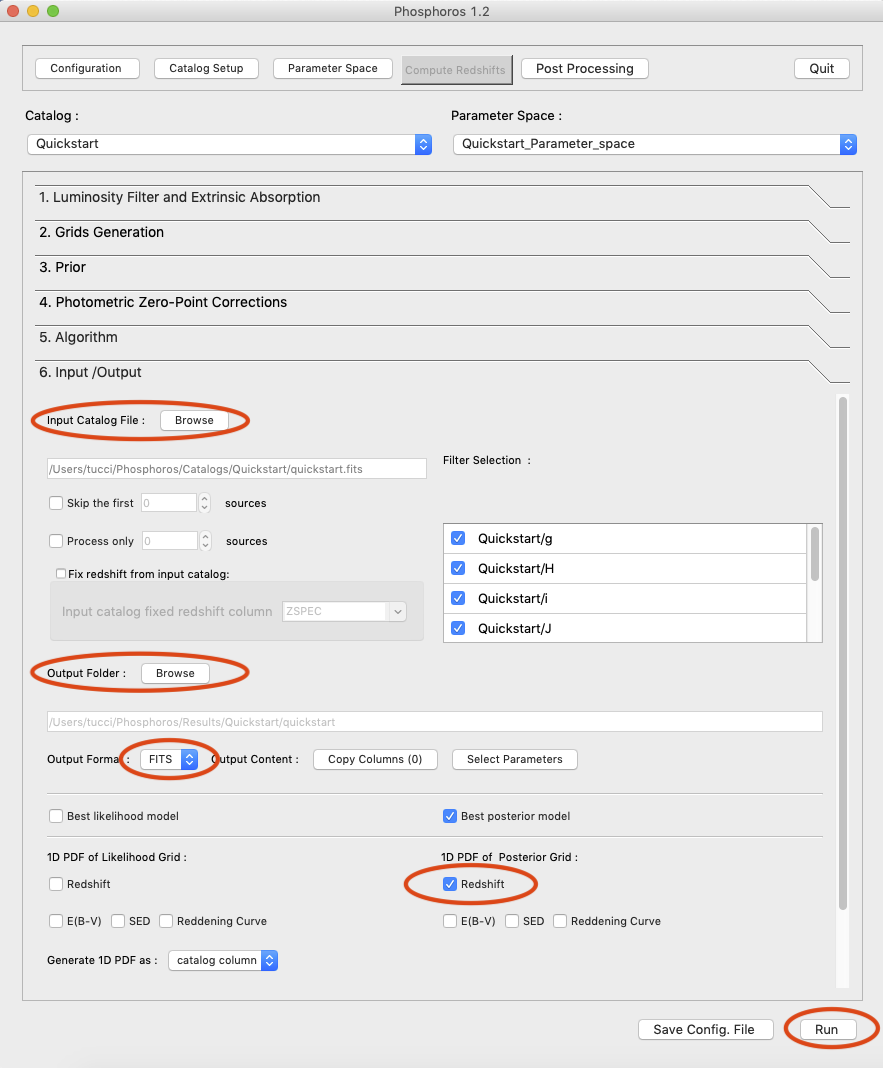
Fig. 3.11 Setting input/output of Phosphoros for the redshift computation in the GUI
Users need to fill the following information:
Input Catalog
As input catalog Phosphoros selects the catalog provided in the
Catalog Setuppanel. Different choices can be done using theBrowsetab, as long as they belong to the Catalog Type defined above.Users can decide to run Phosphoros on a reduced number of input sources, by skipping the first or last N objects (through the
Skip the firstorProcess onlybuttons).On the right side,
Filter Selectionallows users to disable some of the previously selected filters. This is useful if users want to performed particular analyses with a reduce set of photometric bands.Checking on
Fix Redshift from input catalog, Phosphoros can also run with fixed redshifts, i.e. on a catalog where redshift is known for all sources, for example from spectroscopy. This can be useful to derive, for example, the source best fit SED and/or physical properties such as age, star-formation rate etc. The input catalog column containing the reference redshifts has to be selected from theInput catalog fixed redshift columndrop-down menu.Output catalog
Phosphoros results are stored in an output file named
phz_catthat is by default located into:> $PHOSPHOROS_ROOT/Results/<Catalog Type>/<Catalog File Name>/
where the
Catalog File Nameis the name of the input catalog file without the extension. Users can however choose another location by clicking on theBrowsebutton. The output catalog can be saved either in FITS or in ASCII format.Columns from the input catalog can be also copied into the output catalog (
Output Content). TheCopy Columns (0)tab indicates that no input columns are selected. Click on it and a window will appear with the list of all input catalog columns. Select columns to be copied. The number in theCopy Columnstab will be updated.Users can include in the output catalog the best-fit model parameters from the likelihood or posterior distribution or from both, selecting
Best likelihood modeland/orBest posterior model.Typical ouput catalogs include the following information (see File format reference section for more details on output files):
the source ID,
the best model (\(z\), SED, E(B-V), reddening cuve) from the likelihood and/or posterior distribution,
the amplitude of the likelihood and/or posterior distribution for the best-fit model,
the normalized scale factor \(\alpha\) for the best-fit model,
the redshift value at the peak of the redshift PDF.
(Optional) 1D PDF
1D PDF of model parameters (from the likelihood and/or the posterior distribution) can be computed and stored for each source by selecting the desired parameters. Using the
Generate 1D PDF astab, 1D PDFs can be saved as columns of the output catalog (containing vector data) or as individual FITS files, one per parameter (see File format reference section).In the GUI, 1D PDFs from a likelihood are generated by a Maximum Likelihood method, while 1D PDFs from a posterior distribution by Marginalization of the other model parameters (see Axis Collapse options for more details).
(Optional) Multi-Dimensional Output
Users can enable the generation of FITS files containing the full posterior distribution, one per source (the
Full gridoption in theMulti-Dimensional Outputmenu). This action will produce a large volume of data (see File format: Outputs). Otherwise, in order to reduce the dimension of output files, users can save only a sampling of posterior distributions by selectingSamplingand choosing theSample number(default 1000). In this case, Phosphoros stores the parameter values for the sampled models, whose density in the parameter space gives the posterior probability (e.g., the 1D PDF of a model parameter can be simply obtained from the histogram of its values).Multi-dimensional outputs can be investigated using the appropriate Phosphoros tool in the CLI (see Posterior Investigation).
Note
The full posterior distribution is computed after the marginalization of the scale factor (if it is not fixed to its best-likelihood value).
After setting Input/Ouput, users are ready to start the
computation of photometric redshifts, clicking on the Run
button. All results are written into the Output Folder defined
above.
Note
Users do not need to go through all the points above. Select just
the ones you need. If the Run button is inactive, it means that
something is not setup yet and the computing can not be done. In
such case, just hover the mouse pointer on the button and a tool
tip will apears with a list of the missing steps.
The button Save Config. File exports the settings of the different
actions used for the redshift computation into configuration files
(e.g., ModelGrid.CMG.conf, GalacticCorrGrid.CGCCG.conf,
TemplateFitting.CR.conf, etc.). They are located in a directory
choosen by the user (by default $PHOSPHOROS_ROOT/config/). A file,
named command, is also generated with the list of the Phosphoros
commands needed to repeat the GUI run using the CLI.
- PlanckCollaboration16
Planck Collaboration. Planck 2015 results. XIII. Cosmological parameters. A&A, 594:A13, Sep 2016. arXiv:1502.01589, doi:10.1051/0004-6361/201525830.