2. Quickstart in 15 minutes
If you have never used Phosphoros and you want to whet your appetite, this 15 minutes quickstart tutorial is intended just for you! It will give you a brief overview of the Phosphoros workflow and guide you through a simple example of computing photometric redshifts, without explaining in detail each step. At the end of the quickstart you will have an idea how it feels like to use Phosphoros.
This quickstart assumes that you have a functional version of Phosphoros already installed (version 1.3; if you do not, before you continue, you should install Phosphoros by following the instructions here) and you are ready to launch the Phosphoros Graphical User Interface (GUI).
2.1. Template fitting in two words
Phosphoros is a tool for estimating photometric redshifts using template fitting method. The method consists of two steps. During the first step, which has to be performed only once, we define a set of models, for which we compute photometry in specific wavelength bands. You can imagine models as a multi-dimensional parameter space, whose axes are SED template, redshift and reddening (color excess and extintion curve). Each point of this parameter space contains modeled photometry.
During the second step, we take the photometry of a source of unknown redshift and we compare them with our models: the likelihood for the full parameter space is computed using the \(\chi^2\) distance. Based on which models match better the observed photometries, we estimate the best-fit photometric redshift and the redshift Probability Density Function (i.e. the probability of a source to be at a given redshift).
The following sections will navigate you through the quickstart data, settings, and a basic data analysis, in order to get an idea on how each step is performed with the Phosphoros GUI.
2.2. Getting the quickstart data
All the data required to run the quickstart can be downloaded as a
single tar file from the Phosphoros repository. It includes the
quickstart source catalog and eight filter transmissions (plus the
filter mapping file and the parameter space file for quickstart).
You just have to uncompress the file in a directory called
Phosphoros under your home directory. All the quickstart data
will be located in the proper directories according to the Phosphoros
internal data organization (see Directory Organization). The
following commands will get the file and uncompress it:
> cd ~
> mkdir Phosphoros
> cd Phosphoros
> wget https://github.com/astrorama/PhosphorosAuxData/raw/master/QuickStartData/quickstart.tar
> tar -xvf quickstart.tar
Note
Phosphoros uses the ~/Phosphoros directory as the default root
directory. If you want to use a different directory, you can set
the environment variable PHOSPHOROS_ROOT to the directory you
want.
2.3. Executing Phosphoros
To start Phosphoros you need to run the commands:
> conda activate Phosphoros
> Phosphoros GUI
This will open the main window of the Graphical User Interface (GUI) of Phosphoros (see Fig. 2.1).
Fig. 2.1 Starting window of the GUI
At the top part of the main window, you can see the navigation menu. This menu is visible at all times, and it allows you to navigate through the different Phosphoros panels.
Note
When launching Phosphoros for the first time, you are asked to download the Phosphoros data package (more details in Phosphoros internal database). Do it! Everything needed to run Phosphoros with the quickstart catalog will be imported (the SED library, the reddening curves, etc.) and located in the proper directory.
In addition, you will be warned that a reference solar spectrum has
to be selected for the SED normalization. Navigate to the
Configuration --> Aux.Data --> SEDs panel and use the
Select button to select the SED named solar_spectrum
(as shown in Fig. 2.2).
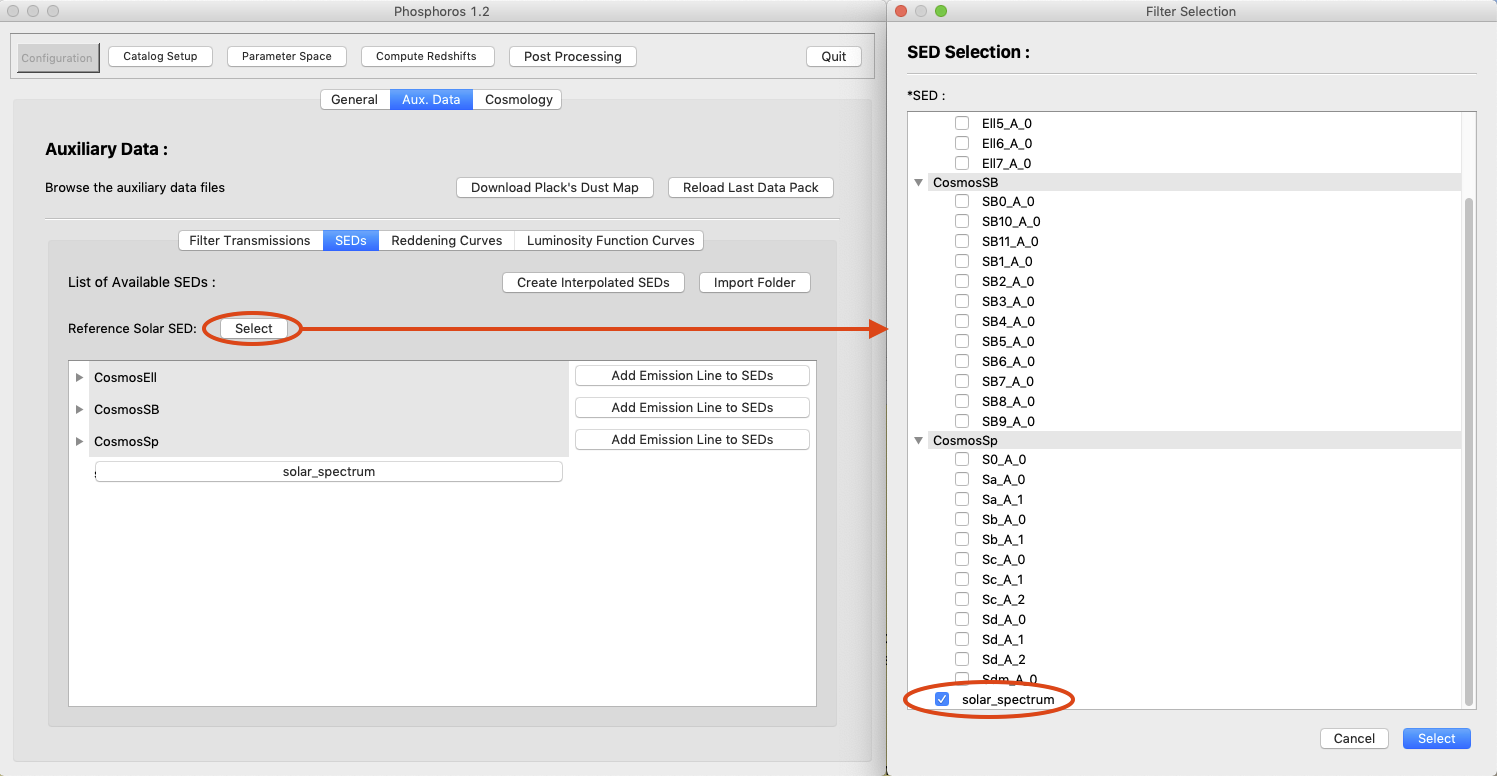
Fig. 2.2 Selecting solar spectrum through the GUI
2.3.1. Filter transmissions
Phosphoros needs the transmission curve of filters to compute modeled
photometry. You can see the available filter transmission curves by
selecting Filter Transmissions in the Configuration -->
Aux.Data panel of the GUI.
Transmission curves are found as files in the directory
AuxiliaryData/Filters/Quickstart. Later on this User Manual
(Important concepts and data setup) you will learn how to add your own filter
transmission curves.
2.4. Examining the input catalog
The quickstart data contain a single catalog file,
Catalogs/Quickstart/quickstart.fits. This is an FITS catalog, but
Phosphoros can read both ASCII and FITS tables. You can examine the
catalog file with your favorite tool (e.g., TOPCAT). It contains
photometry for 8 filters, including errors, and a column with
spectroscopic redshifts, which can be used for estimating the accuracy
of predicted photometric redshifts.
2.4.1. Mapping filters to photometry
Phosphoros needs to know which filter corresponds to the photometry column in the catalog file. This mapping operation is already done for you in the quickstart data (see the red box in Fig. 2.3).
You can see it by selecting Catalog Setup at the navigation
menu. You should first select Quickstart from the Catalog
drop-down menu, then click the Select File and Import Columns
button and select your catalog file. You also have to select the
catalog column containing the object ID in the Source ID Column
menu.
If you want to plot your results, it is useful to insert the column
name containing reference redshifts (here, ZSPEC) in the
Reference Z tab.
When you finish you have to click the Save button to persist your
modification.

Fig. 2.3 Catalog Setup panel of the GUI. The red box shows the filter
mapping for the Quickstart example
Later in the User Manual, you will learn more about how to organize your catalogs (Directory Organization) and how to map columns to filters (GUI: Catalog Setup: Mapping filters to column names).
2.5. Examining the parameter space
During the first step of the template fitting method, Phosphoros
builds the photometry for all the models which will be used for the
\(\chi^2\) computation. A full explanation of how to define this
parameter space is out of the scope of this quickstart tutorial and it
will be explained in detail later
(GUI: Defining the model parameter space). For the moment, to get an idea
how a parameter space looks like, you can select the Parameter
Space panel of Phosphoros and select the Quickstart parameter
space (see Fig. 2.4).
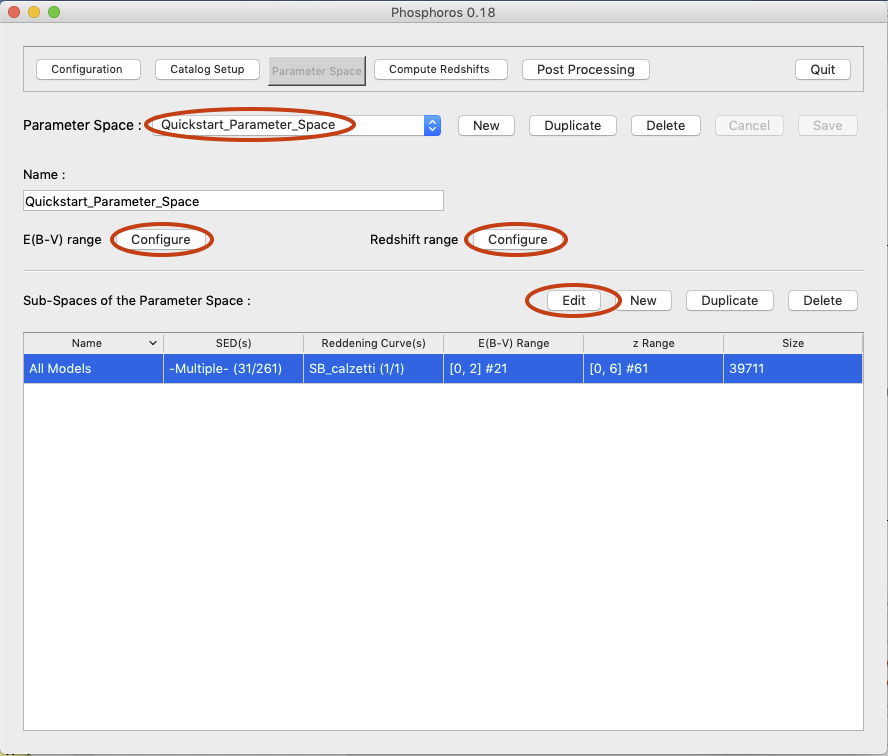
Fig. 2.4 Parameter Space panel of the GUI
Click the Edit button to open the window showing the axes of the
parameter space. There you can see that the Cosmos templates are
used as SED templates, the Calzetti reddening law is used for the
extinction with E(B-V) in the range 0 to 2 and 0.1 steps, and
the redshift is computed for the range 0 to 6, with 0.1 steps.
Note
If the range and the step of redshift and E(B-V) are not
set up yet, you will be asked to do it through the Configure
buttons.
2.6. Building the grid of models
So far you had a look of the setup included in the quickstart
data pack. Now you are going to use Phosphoros for running the
two steps of the template fitting. The execution of them is done in
the Compute Redshifts panel of Phosphoros.
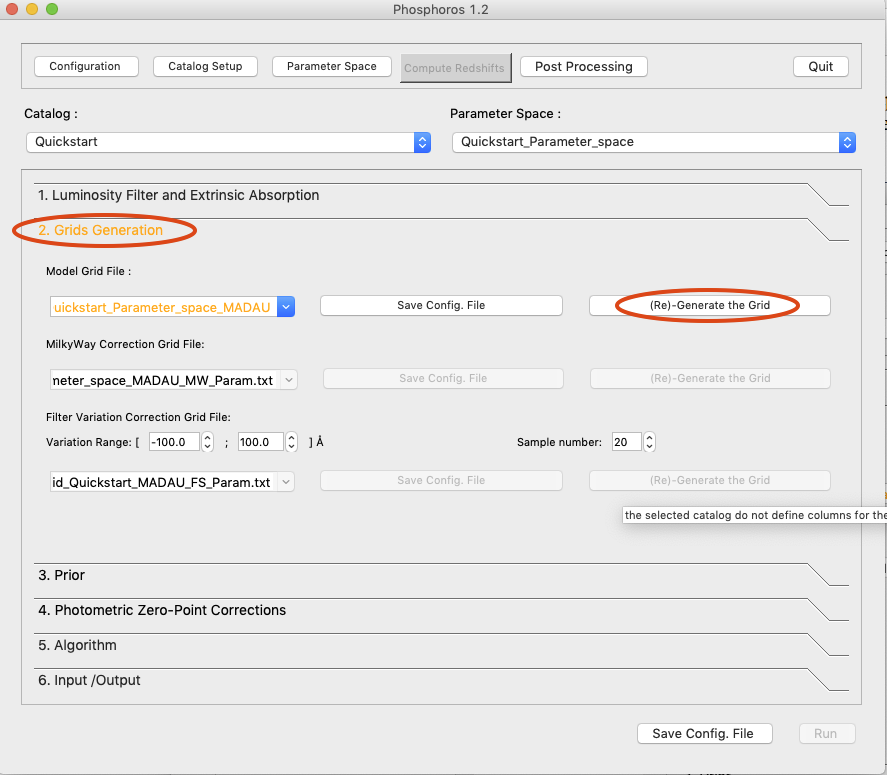
Fig. 2.5 Grid Generation sub-panel inside the Compute Redshift
panel of the GUI
This panel contains six collapsable sub-panels, one for each operation you can
perform with Phosphoros. The titles of these sub-panels are color-coded, so if
you have to take some action in one of them, its title will be presented in orange
letters. For example, at the moment we have not performed yet the first step of
the model fitting (i.e., computing modeled photometry), so the sub-panel
2. Grids Generation is orange (see Fig. 2.5).
To build the grid of models you just have to click on the 2. Grids
Generation label to expand the sub-panel and then click the
(Re)-Generate the Grid button. Note that when this operation will
finish, the name of the panel will turn black, indicating that you can
go on with computing your photometric redshifts.
Tip
When the Save Config. file and/or Run button is grayed out,
hover the mouse on it and a tool tip will appear with the list of the
missing steps blocking the action.
Note
You do not need to rebuild your modeled photometry, as long as you do not modify your parameter space. Phosphoros will check all the already generated grids of models and, if you already have a compatible one, it will allow you to use it for computing the photometric redshifts.
2.7. Compute photometric redshifts
Now that you have built your models you are ready to compute your
first photometric redshifts using Phosphoros! To do that select the
6. Input/Output in the Compute Redshifts panel
(Fig. 2.6).
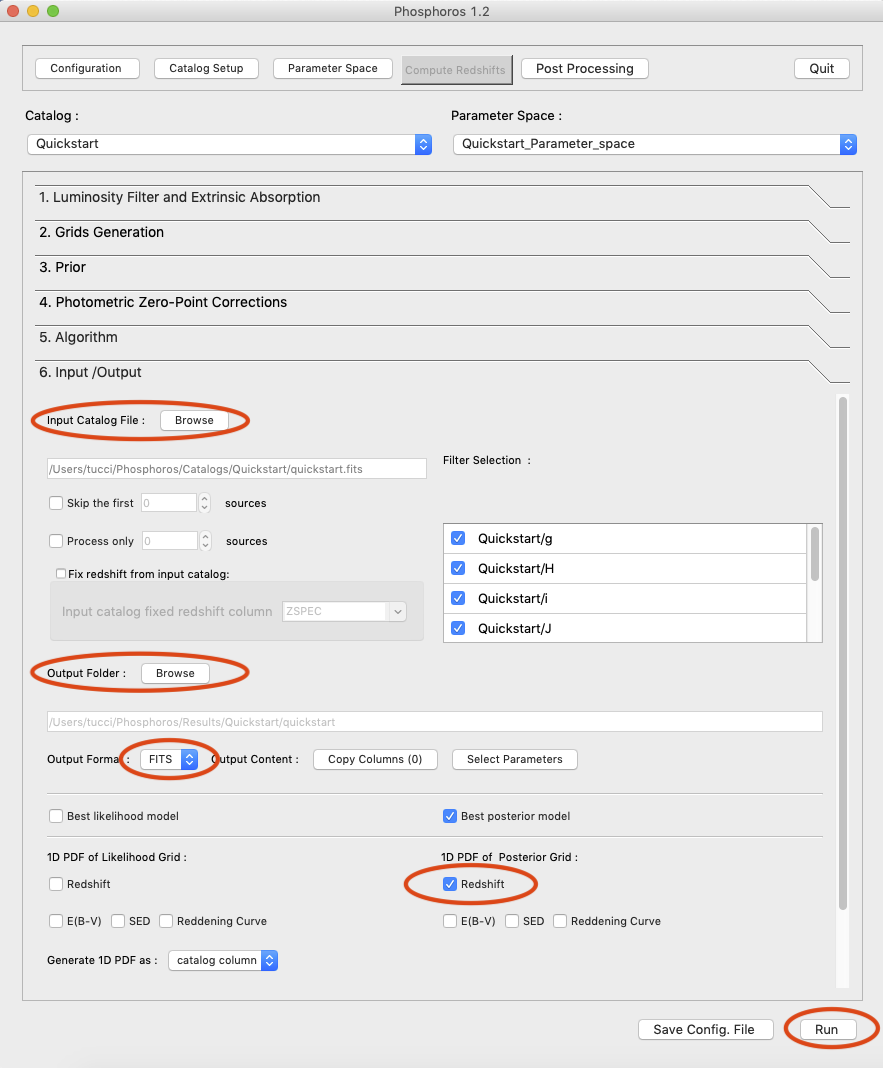
Fig. 2.6 Input/Output sub-panel inside the Compute Redshift
panel of the GUI
Here you can setup the input and the output parameters. Note that the catalog included with the quickstart data is already selected as input catalog. Moreover, Phosphoros has already set the output folder for you. This is done based on some rules which should help you to organize your outputs (and avoid overriding them). You can find more details about this organization in Directory Organization. You can however change the output folder to any directory you like. You can also select the format (ASCII or FITS table) of the output catalog.
In the rest of the panel, you can select additional outputs to be
produced in the output catalog and directory (best-fit model, 1D PDFs,
multi-dimensional distributions, etc). For this tutorial you should
select as Output Format FITS and to generate the 1D PDF of the
Posterior distribution for Redshift and E(B-V).
Tip
Do not select the multi-dimensional outputs, as this will result in the creation of very big files. These outputs are intended for investigating specific cases, as it is explained later in the User Manual (Posterior Investigation).
To compute the photometric redshifts for your catalog you just have to press the
Run button at the bottom right corner of Phosphoros and you are done!
Note
Before estimating redshifts, Phosphoros will compute the weight to be associated to each SED template of the parameter space. This is an optional functionality of Phosphoros. See SED weights for more details.
2.8. Visualizing the results
Even though the output files of Phosphoros can be handled by any software which manages tables (like TOPCAT), Phosphoros provides some post-processing tools to facilitate this process.
The most useful plot for visualizing your results (as long as the input catalog does contain the spectroscopic redshift) is the photoZ-specZ plot. Using this plot you can see how well Phosphoros performed in predicting redshifts.
To see the plot for your results you have to select the Post
Processing panel, and click on the Plots button. A pop-up window
opens (Fig. 2.7) where you have to provide the path for the
catalog with the reference redshifts (e.g., the input catalog if it
contains them), the column name of the source ID and of the reference
redshifts. However, if the Reference Z column has been declared in
the Catalog Setup panel, the input catalog and the corresponding
columns are automatically selected.
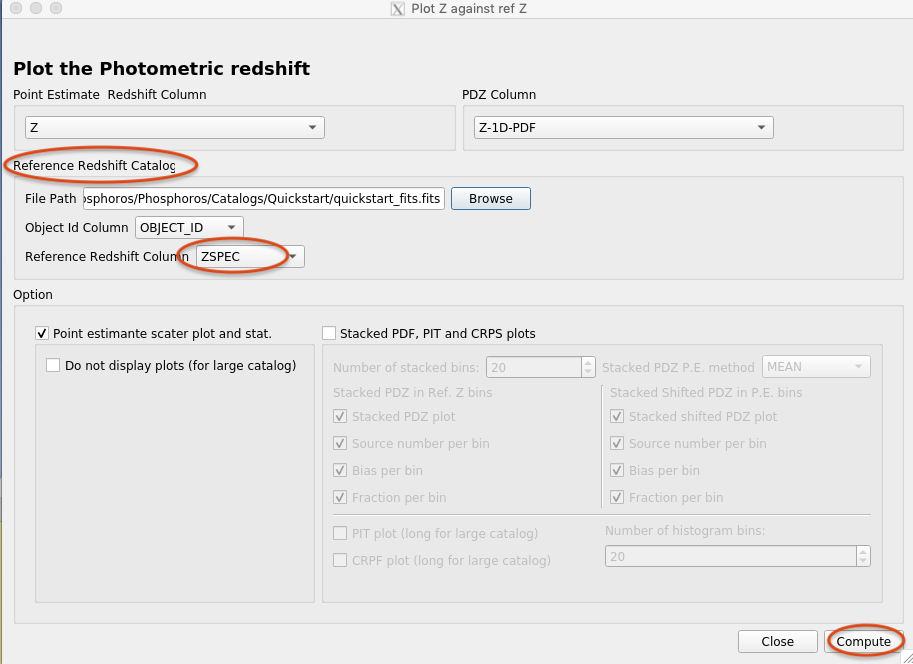
Fig. 2.7 Setup window for the visualization of results with the GUI
Pressing the Compute button will open new windows: the
photoZ-specZ plot (Figure 1); the distribution histogram of their
relative differences (Figure 2); and the 1D PDF of the model
parameters for which the PDF has been computed (e.g., in
Fig. 2.8, for redshift and E(B-V)). At the
beginning the 1D PDF plots will be a zero constant line until a source
is selected. Colors in the photoZ-specZ plot are associated to the
number density of objects, blue at the lowest density and dark red at
the highest density.
If you click on a point in the photoZ-specZ plot, you will see at the top left corner the ID of the source, and its redshift and E(B-V) 1D PDF will be plotted in the corresponding plots.
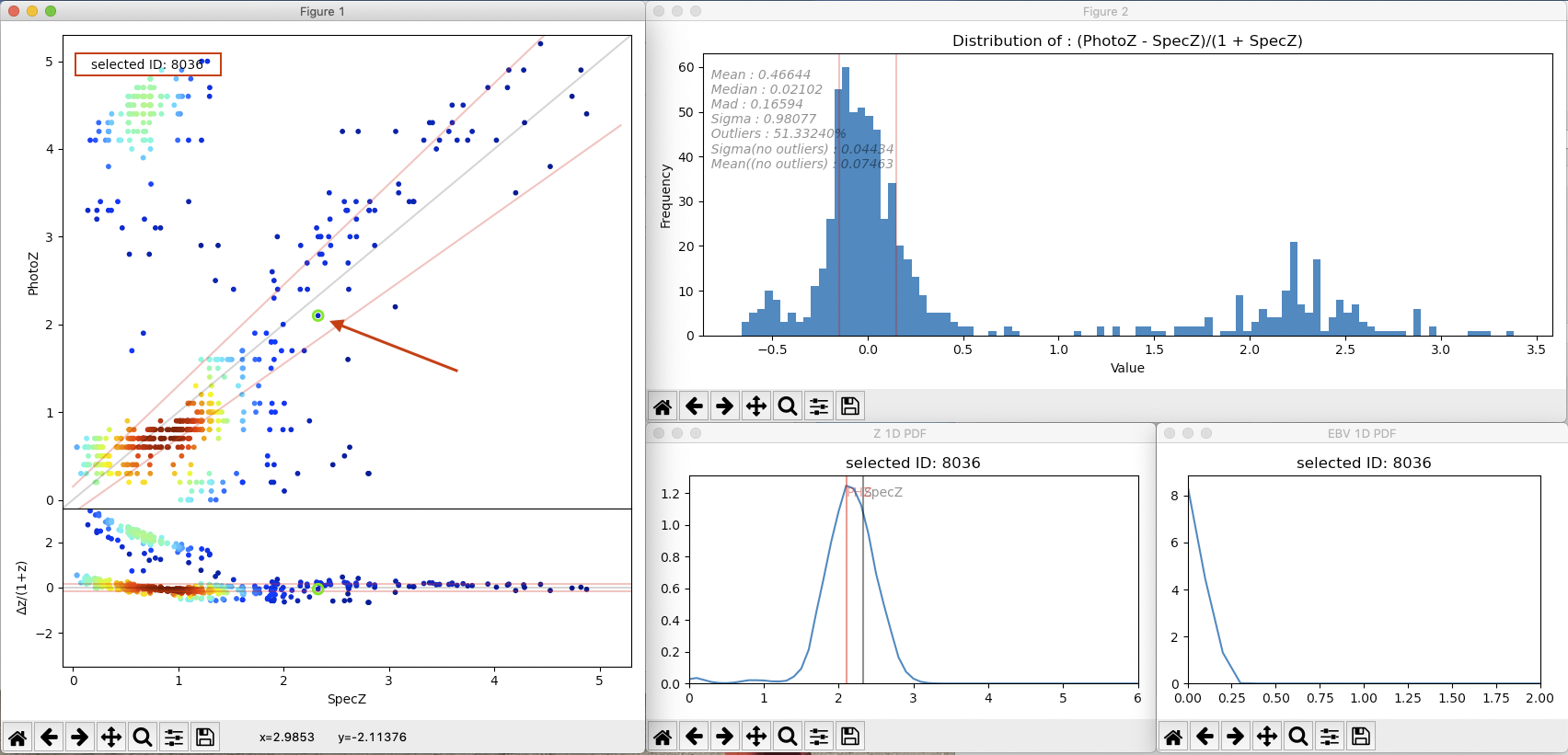
Fig. 2.8 Plots comparing photometric and reference redshifts
Note
These plots are standard matplotlib plots, so some default functionalities (like zooming, etc) are available.
2.9. Summary
During this quickstart tutorial you had a first look of how the Phosphoros GUI works. Phosphoros provides much more advanced options for improving your photometric redshift results, which have not been explain here. The following chapters of the User Manual will navigate you through a more detailed description of how to use Phosphoros and will explain in details all the advanced features, so to achieve optimal photometric redshift estimates.